Last updated · Read Markdown
WordPress and WooCommerce
How do I connect PostSprout to WordPress or WooCommerce? #
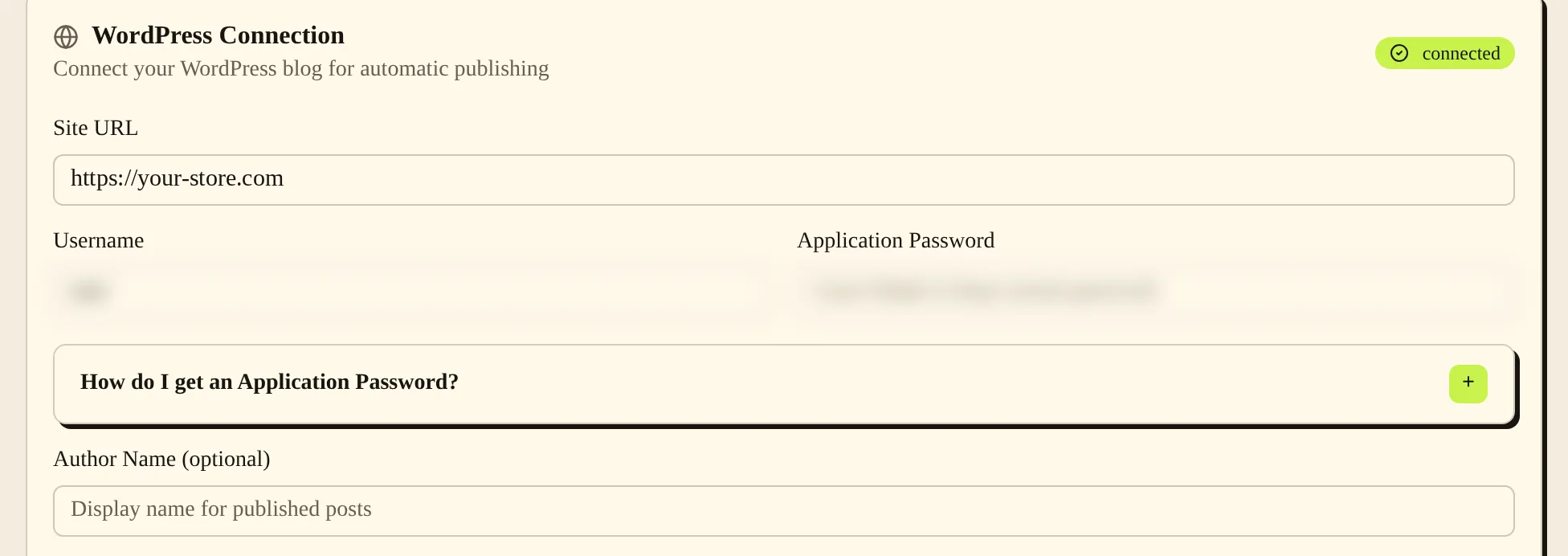
Use your WordPress site address, username and an application password to connect the site. WooCommerce shops use the same WordPress connection. Save the connection, test it, then select WordPress as the Publish Target. Only the blog owner can change the connection settings.
When to use it #
Use this connection to publish articles to an existing WordPress blog, including the blog on a WooCommerce shop. Use an HTTPS address when your site supports it.
Steps #
- In your WordPress account, open Users, then Profile, and create an application password under Application Passwords. Use that password in PostSprout, rather than your normal sign-in password.
- In PostSprout, open Settings, then WordPress Connection. Enter Site URL, Username and Application Password, then choose Save.
- Choose Test Connection and check that the connection succeeds. If you edit the site or replace the password, test the connection again.
- Under Publish Target, select WordPress and choose Save Target.

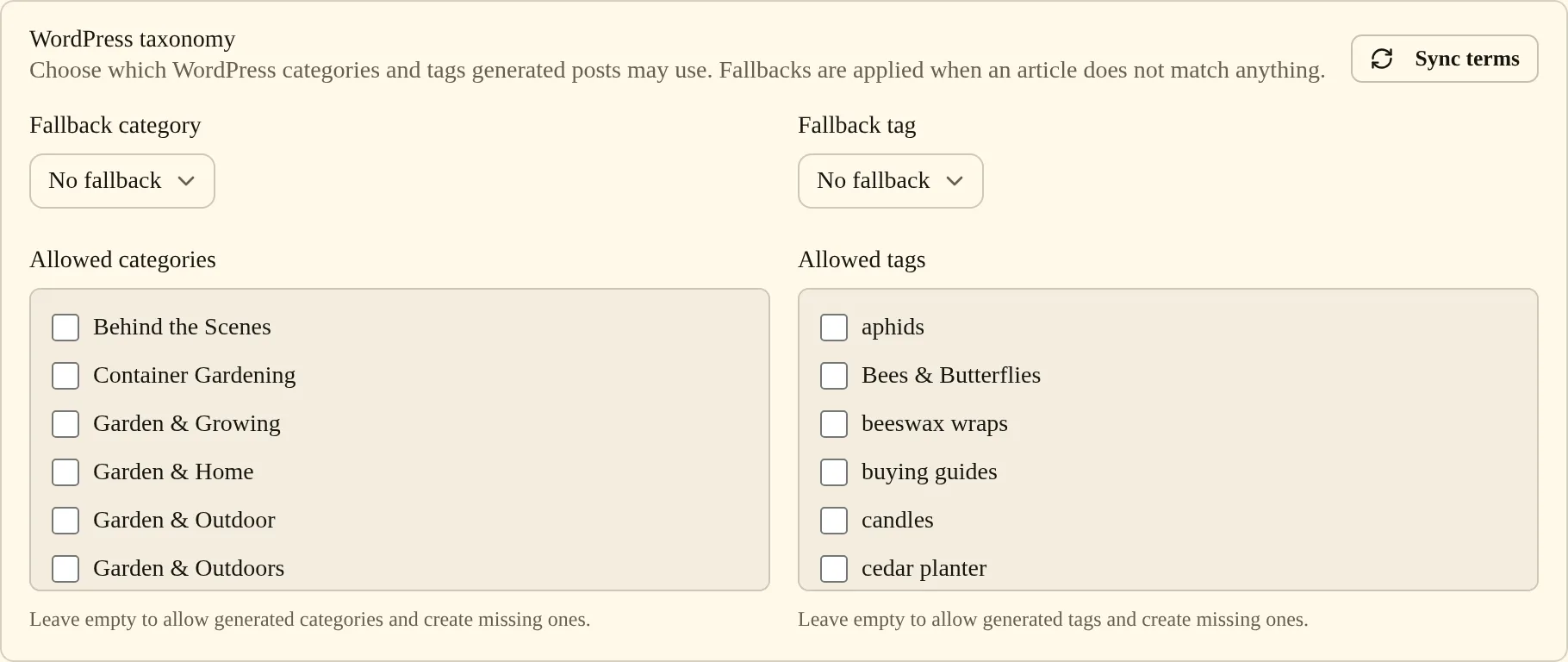
- To control categories and tags on new posts, choose Sync terms under WordPress taxonomy to load them from your site, then set the options below.
Settings #
| Option | What it changes |
|---|---|
| Site URL | The WordPress site to connect to. |
| Username | The WordPress user used for publishing. |
| Application Password | The credential for the connection. Leaving the field empty on a later save keeps the saved password. |
| Author Name (optional) | The author name supplied for posts. |
| Fallback category and Fallback tag | The category or tag a post gets when it does not match any other. Choose No fallback to leave it unset. |
| Allowed categories and Allowed tags | Limit posts to the terms you tick. Leave them empty to let PostSprout pick terms and create missing ones. |
| Publish Target | Select WordPress to publish approved articles to this connection. |
Common problems and fixes #
“Enter a new application password when changing the WordPress site URL” means the saved credential belongs to another site address. Enter an application password for the new site, save, then test.
“Add an application password to create the connection” means this is a new connection with no usable password. Create an application password in WordPress and enter it here.
If application passwords are unavailable, check that the site uses HTTPS. WordPress turns off application passwords on sites without HTTPS, unless it is a local site. A connection test failure can also mean the WordPress host or security rules blocked access. Check the reported error and your site credentials before retrying.
Related pages #
Shopify · Quick start · What PostSprout does · Troubleshooting and FAQ
Was this page helpful?