Last updated · Read Markdown
Quick start
How do I publish my first article with PostSprout? #
Create your account, set up your brand and connect your WordPress, WooCommerce or Shopify site. Pick an idea, write the article, read the draft, then choose Approve & Publish. Your free first article has its own button, Write my free article, and goes straight onto your site if it is connected.
Before you start #
Have access to the site where you want your article to appear. For WordPress or WooCommerce, you need a WordPress username and an application password. For Shopify, you need permission to connect the PostSprout app to your store.
Steps #
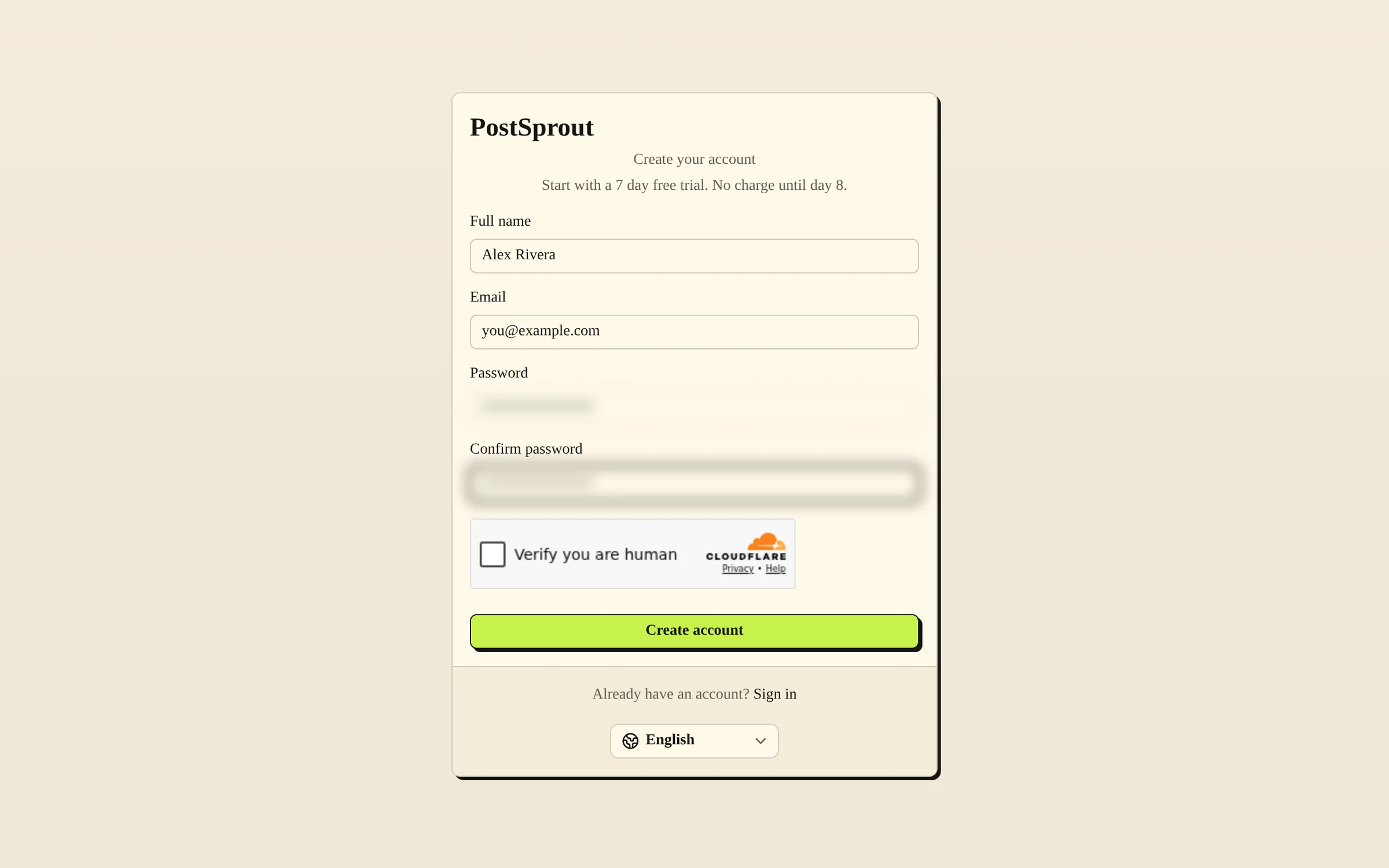
- Create your account at Sign up. Complete the email verification if prompted, then sign in.
- In onboarding, choose your platform. On the WordPress path, connect your site before Review your blog. On the Shopify path, choose Install through Shopify and approve the install in Shopify. Check your blog name, niche, audience, voice and topics, then choose Create my blog. You can edit brand details later under Brand.
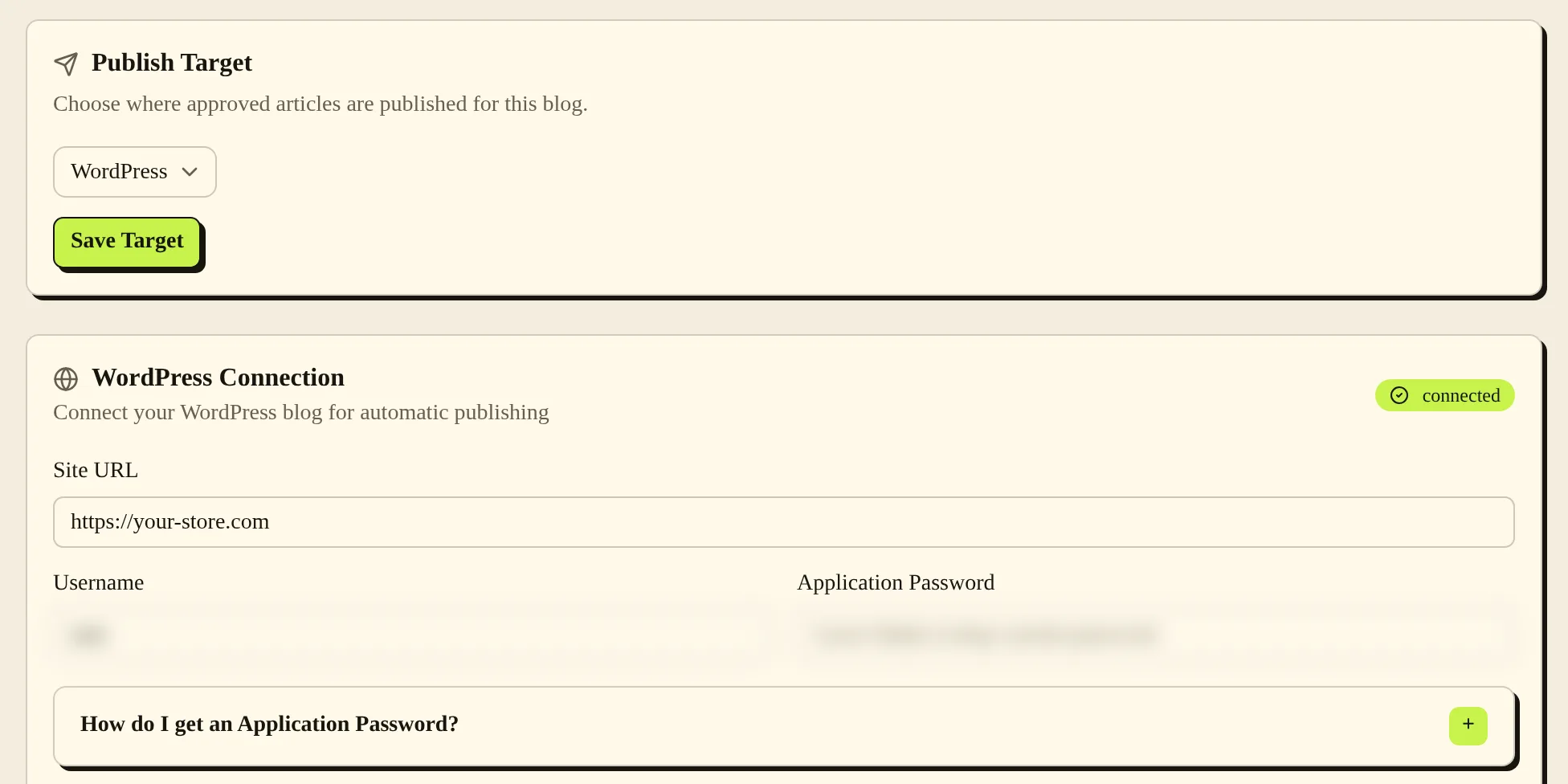
- Check the connection under Settings. For WordPress, save the connection and use Test Connection. For Shopify, finish the app connection and choose the destination blog. Make sure Publish Target shows your site, then choose Save Target.
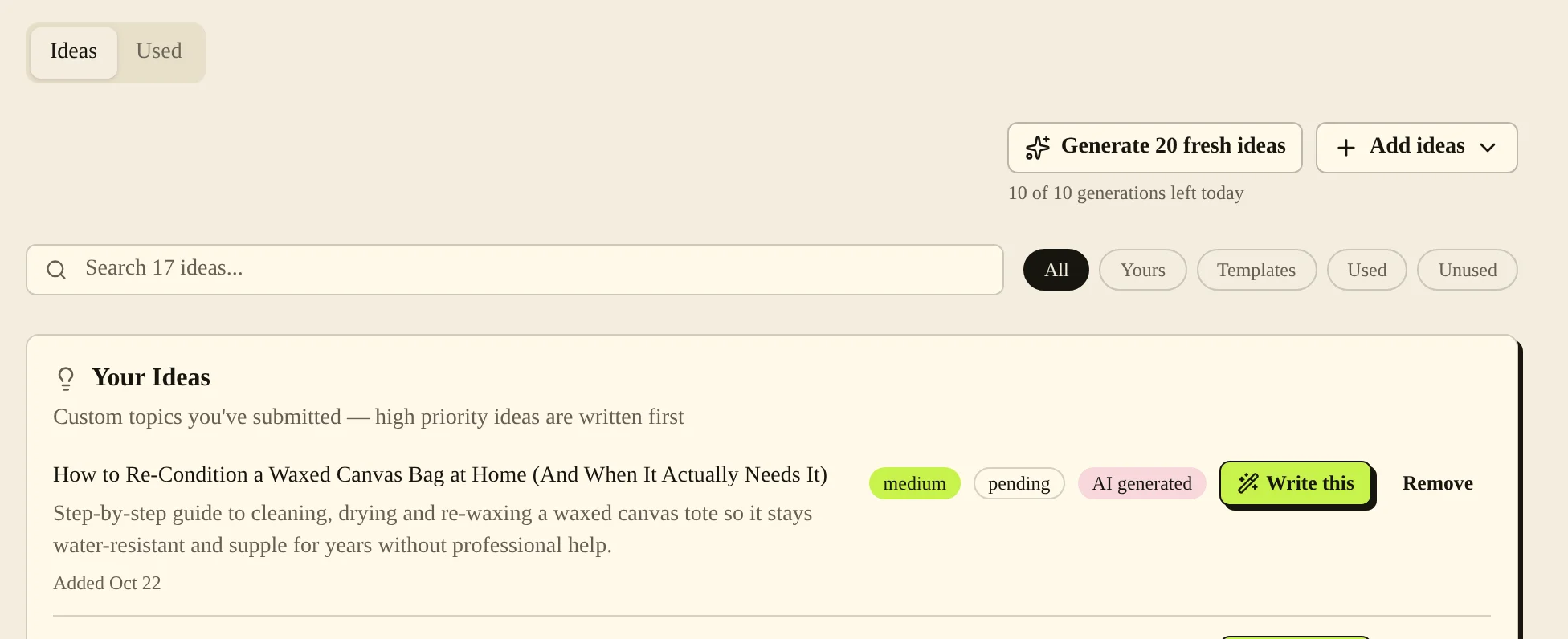
- Open Ideas and choose Write this on an idea. To use your own topic instead, open Articles, choose New article, then Custom topic.
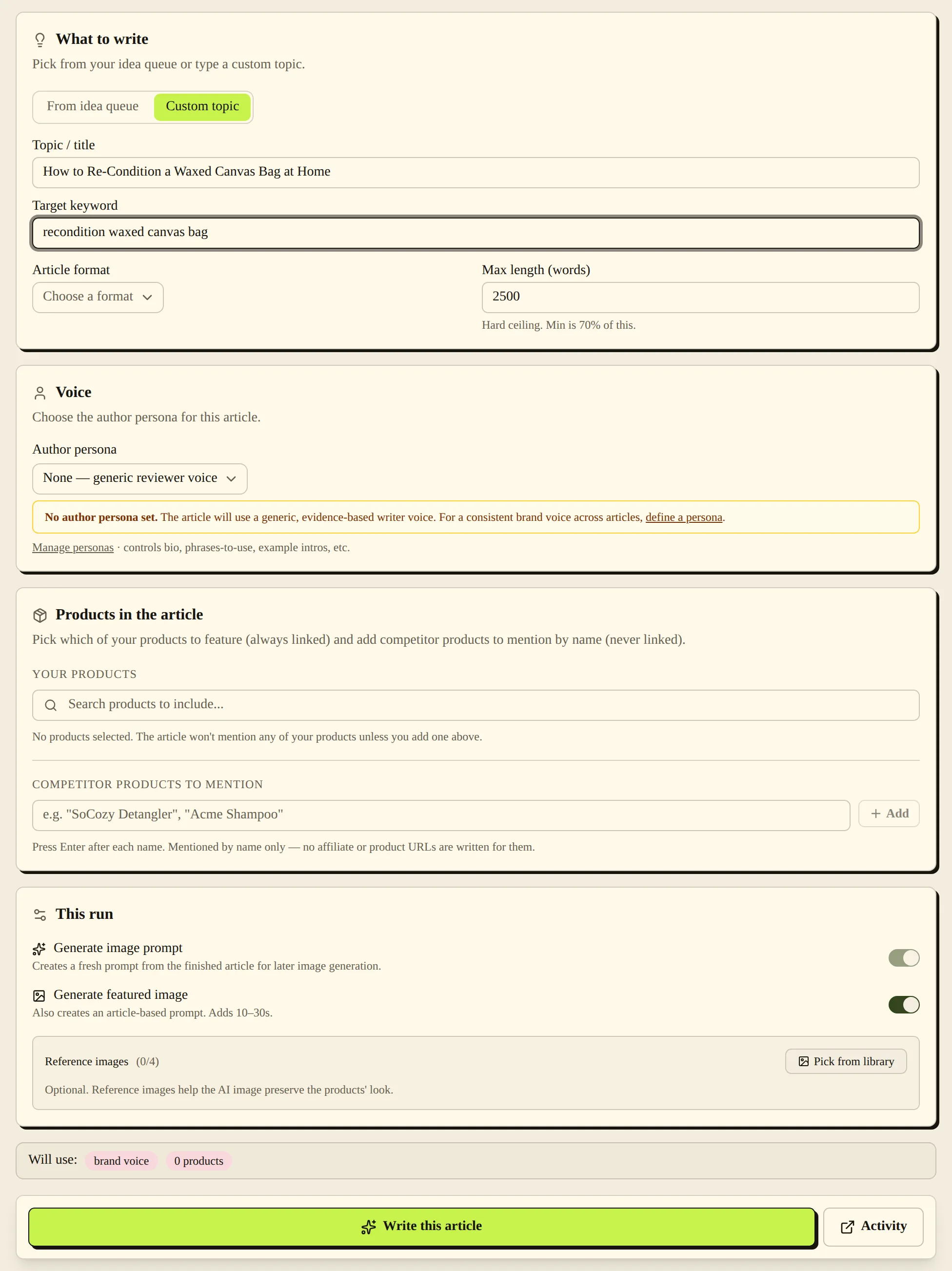
- Check the article options and choose Write this article. PostSprout opens pipeline Activity so you can follow the run. Writing usually takes 5 to 10 minutes. For your free first article, choose Write my free article in the sidebar instead.
- Open Articles, then To review, and choose Preview to read your draft. Check the text, links and images.
- Choose Approve & Publish when it is ready, then pick when it goes out. Open the article and use View on Blog to check the published result. If your free article already published, use Open the live post on its completion screen.
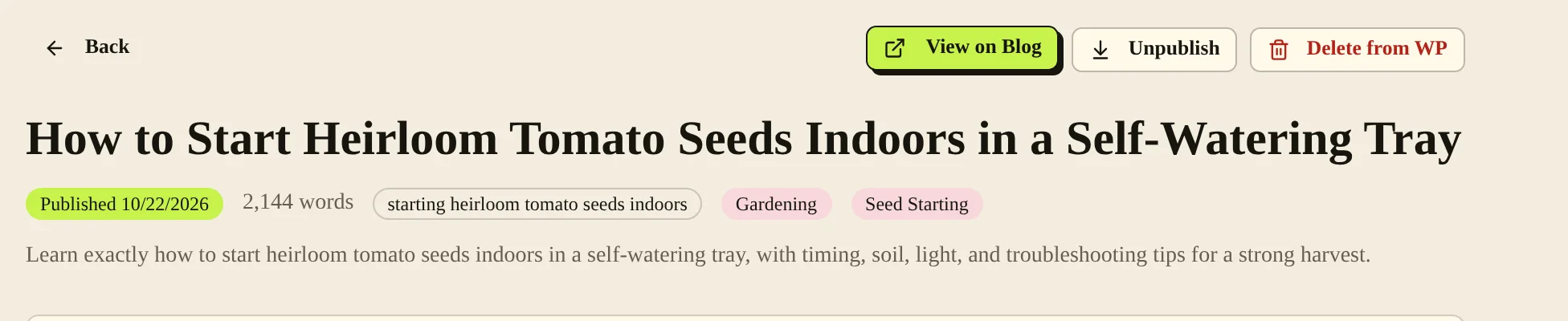
You are done when you can open the article on your own site.
Common problems and fixes #
If the article is ready to read but has no live link, check the site connection and the review queue. If setup could not read your site, fill in the brand details by hand and check them before writing.
Related pages #
Shopify · WordPress and WooCommerce · Articles and the editor · Ideas · Languages · How PostSprout works · What PostSprout does
Was this page helpful?