Last updated · Read Markdown
Images and product images
How do I choose or change an article image? #
Choose the default Article image mode in Settings, under Pipeline Settings, then choose Save Pipeline Settings. To change one article's featured image, open the article and choose Upload Image under Featured Image. Keep reusable product pictures under Brand, then Images.
When to use it #
The default mode applies to new articles. Upload an image when you already have a photo or graphic you like. Keep product pictures in your library when you want to reuse them as references.
Steps #
- Open Settings, then Pipeline Settings, and choose Article image: Pattern (default), Title card, AI generated or None.
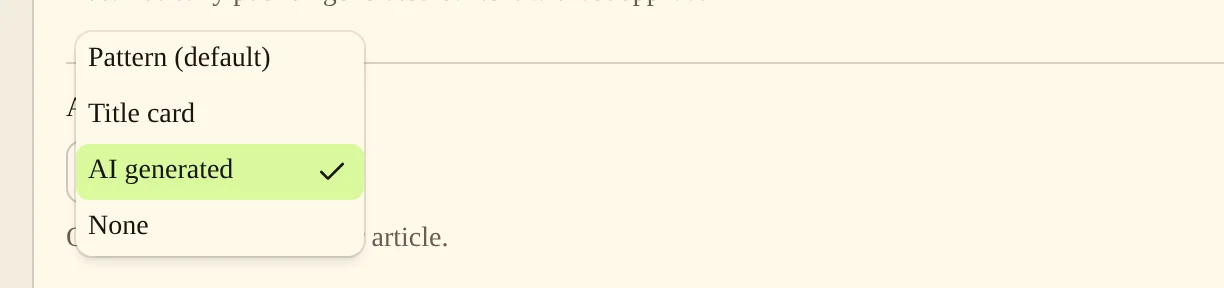
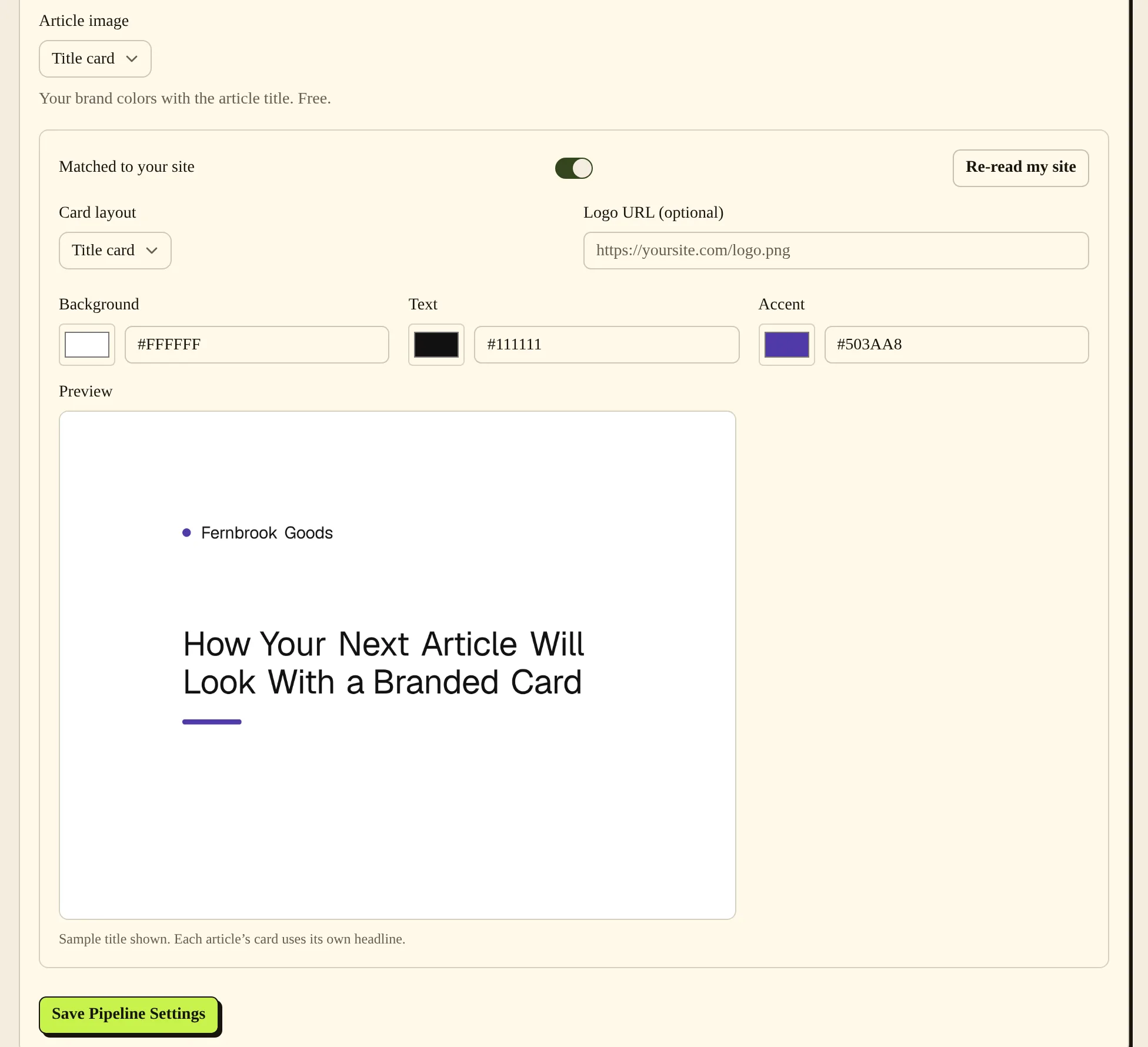
- For Pattern (default) and Title card, set the card colours and check the Preview. For AI generated, choose an AI image style. Then choose Save Pipeline Settings.
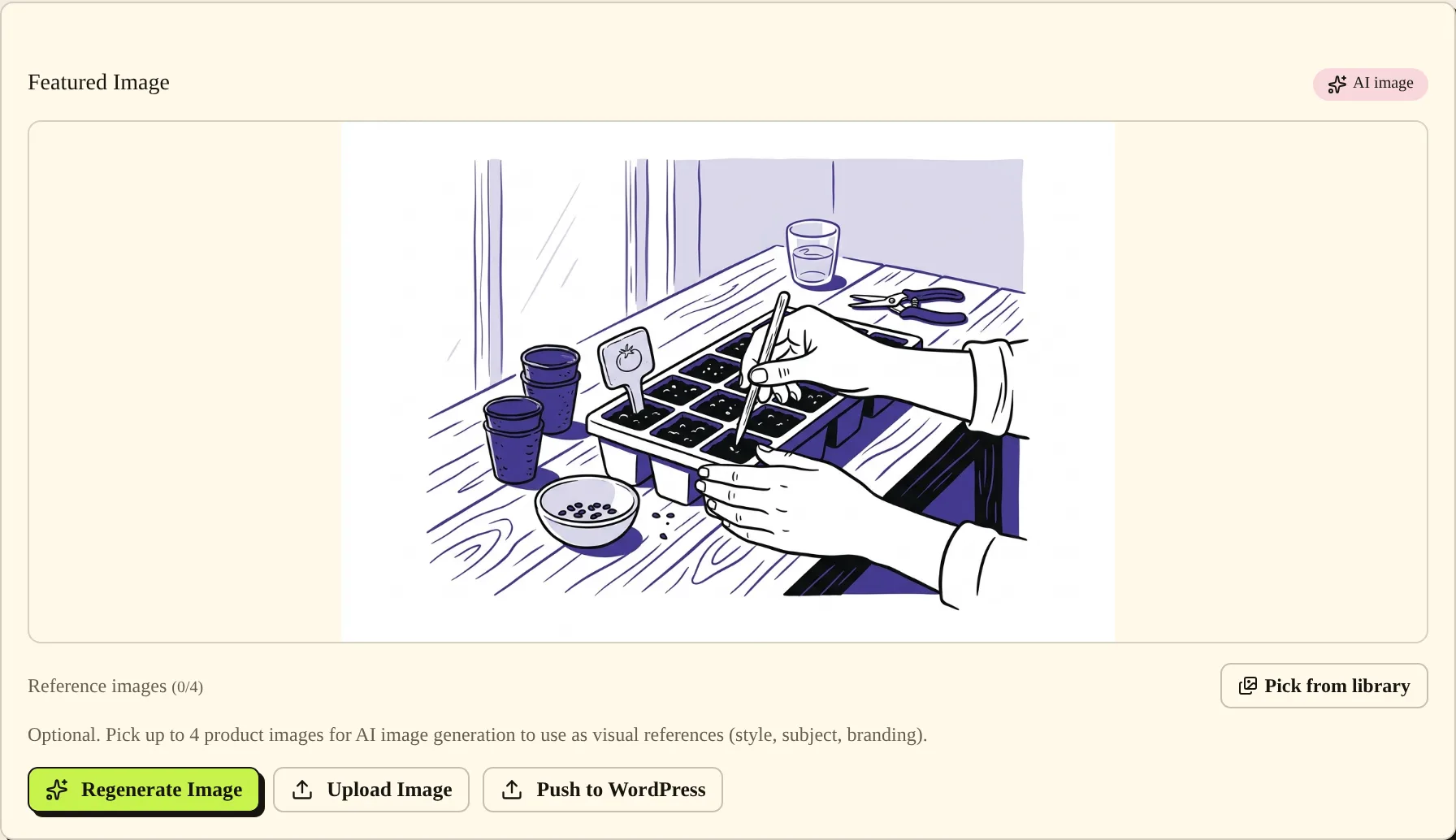
- Open the article, or its Preview under To review, and find Featured Image. Choose Upload Image and select a file. If the article is already published, choose Push to WordPress or Push to Shopify to update your site.
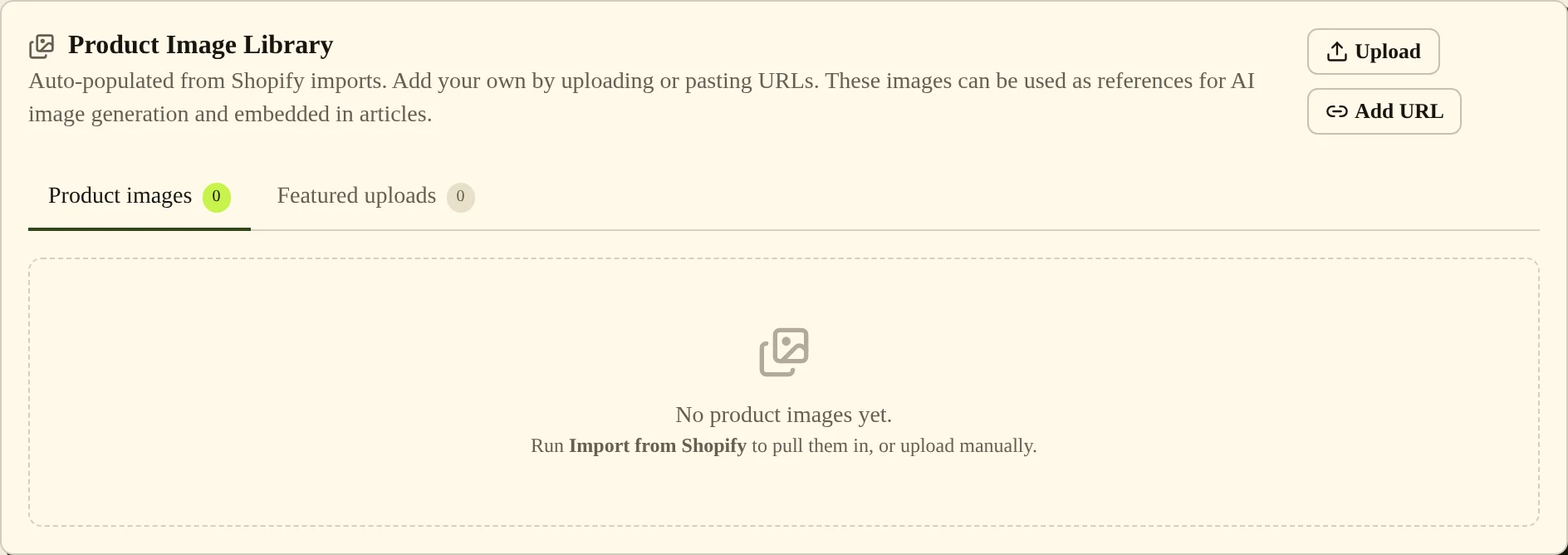
- Open Brand, then Images, to manage the library. Choose Upload for a local file, or Add URL to add an existing image address and optional alt text.
Settings #
| Option | What it changes |
|---|---|
| Pattern (default) | Uses a pattern in your colours with a topic icon and no text. Each keyword gets its own pattern. |
| Title card | Uses your brand colours with the article title. |
| AI generated | Creates one AI image per article and checks it. If that fails, PostSprout uses a pattern card instead. |
| None | New articles publish without a featured image. |
| Match my site and Re-read my site | Use or refresh colours read from your site for the cards. They show when WordPress is connected and Shopify blog is not the publish target. |
| Card layout | Changes the title-card layout when that mode is selected. |
| Reference images | Choose up to 4 product images for the AI image to use as visual references (style, subject, branding). |
| Logo URL (optional) | Adds your logo to title cards. |
| Upload Image | Sets an article's featured image from an uploaded file. |
| Image URL and Alt text (optional) | Add an existing image to the library with a description. |
Upload limits #
As of November 2026, image uploads allow JPEG, PNG, WebP, GIF and AVIF files up to 10 MB each.
Common problems and fixes #
“File too large (max 10MB)” means the file exceeds the upload limit. Export a smaller file and upload it again.
“Unsupported file type” means the file's reported format is not supported. Export it in one of the supported formats before uploading.
“AI images are unavailable for this blog. Contact support to regenerate images.” can appear when you choose Generate Image or Regenerate Image on an article. Choose Contact support in the message, or use Upload Image instead.
A pattern card on an article in AI generated mode means the AI image could not be made or did not pass its check. If your site still shows an old image after an upload, choose Push to WordPress or Push to Shopify again.
Related pages #
Articles and the editor · Brand voice and authors · Publishing schedule and calendar
Was this page helpful?