Last updated · Read Markdown
Articles and the editor
How do I write, review and edit an article? #
Open Articles, choose New article, pick an idea or type your own topic, then choose Write this article. Your draft appears under Articles, then To review. On the review card, choose Preview, then Edit in the Article panel to change the text. Choose Save when you are done.
When to use it #
Start an article yourself when you want a topic written now instead of waiting for the schedule. You can edit a draft before you approve it, and you can edit a published article later. Saving a published WordPress or Shopify article also updates it on your site.
Steps #
- Open Articles and choose New article, or choose Write this on an idea. Choose From idea queue to use an idea, or Custom topic to fill in Topic / title and Target keyword.
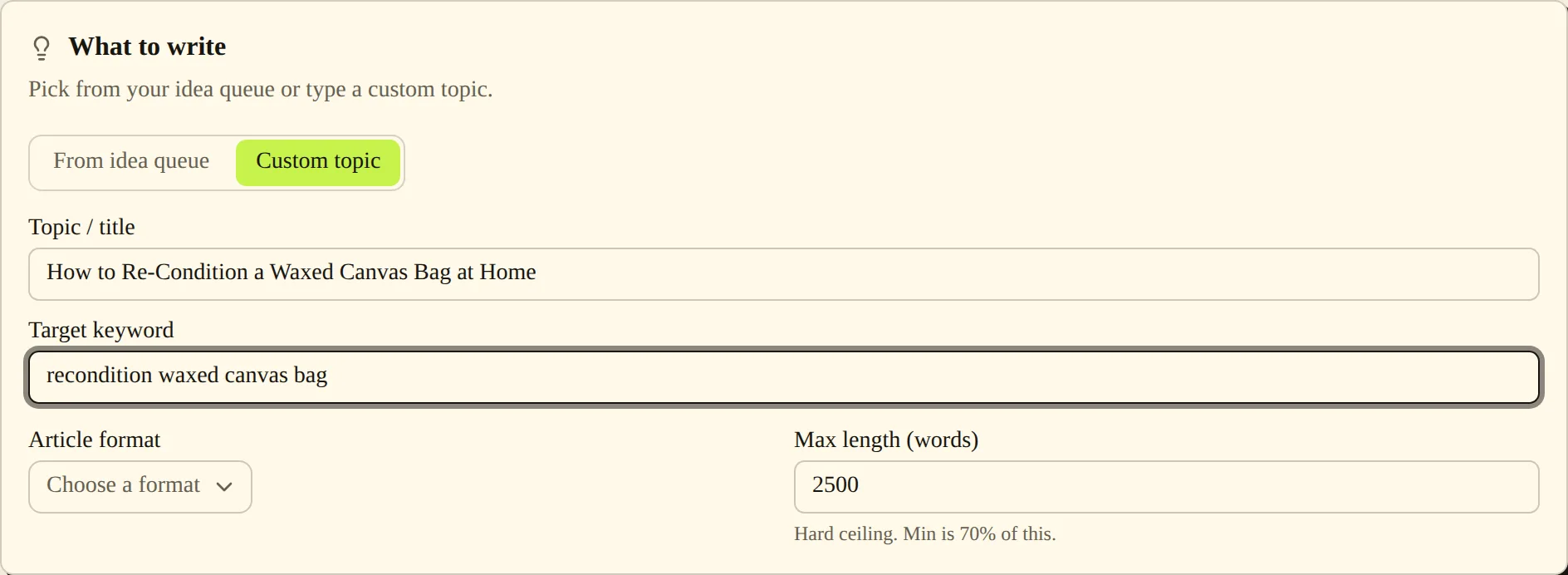
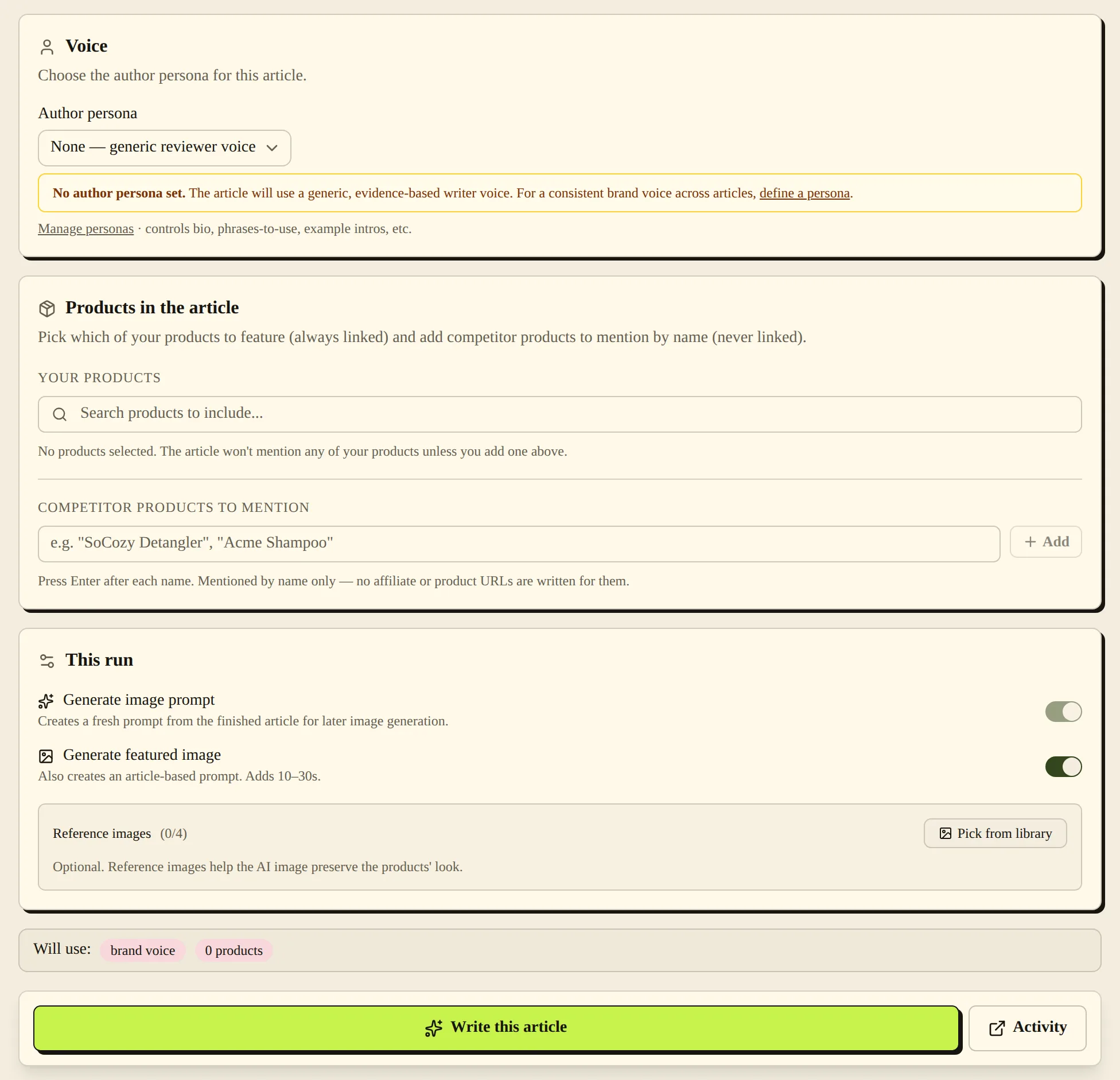
- Check Article format, Max length (words) and Author persona. Under Products in the article, add any products you want featured. Then choose Write this article. PostSprout opens pipeline Activity so you can follow the run.
- Open Articles, then To review. Choose Preview to read a draft, its research sources and its structured information.
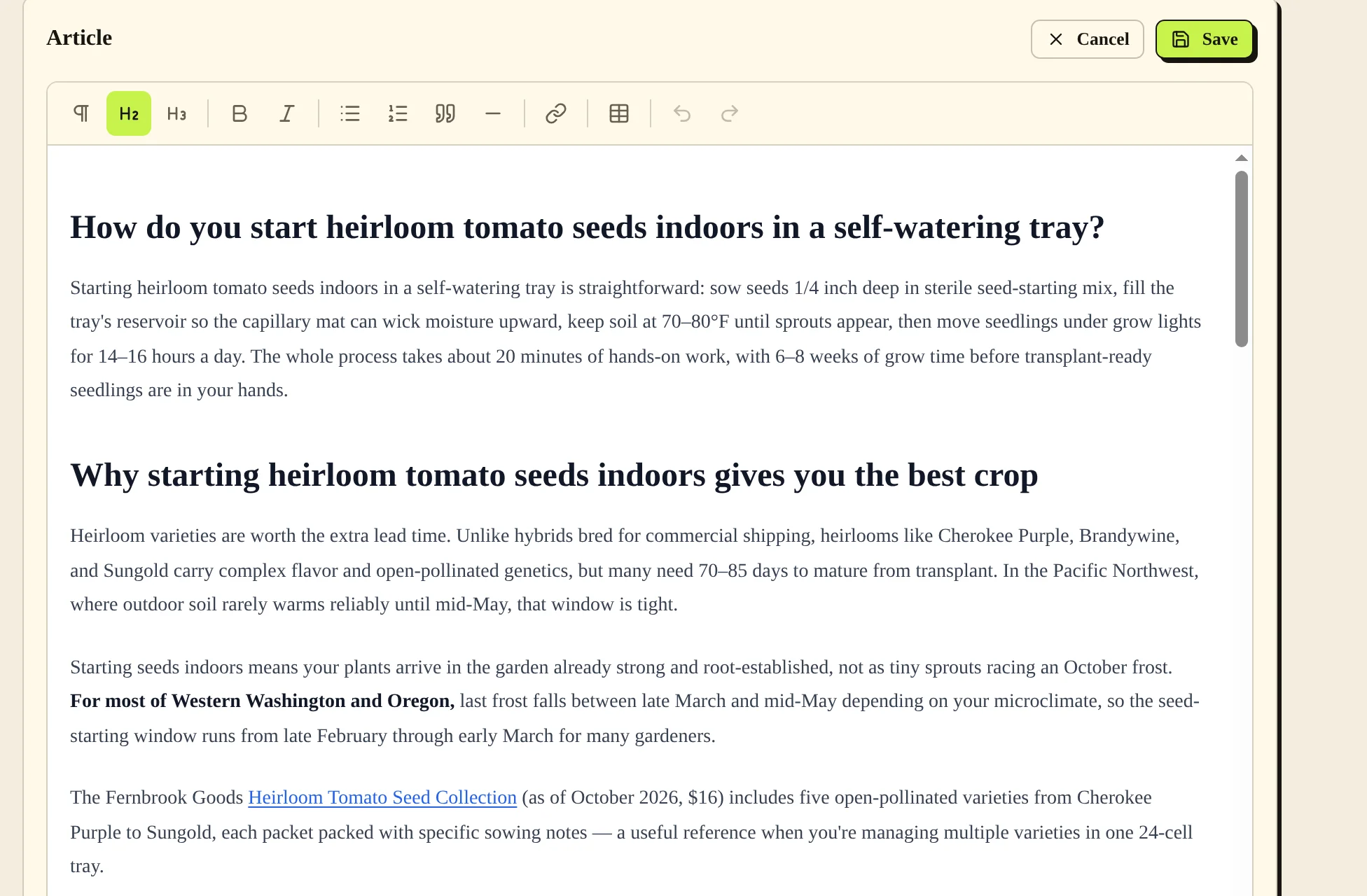
- In the Article panel, choose Edit, change the text, then choose Save. Cancel discards the unsaved changes in that editor.
- For a draft ready to publish, choose Approve & Publish and select the publishing time. Open Published and the live article link to check the result.
Settings #
| Option | What it changes |
|---|---|
| Topic / title | Sets the subject when you enter your own topic. |
| Target keyword | Sets the keyword for the article. A blank field defaults to the topic. |
| Article format | Chooses the article's structure, such as a how-to or a list. |
| Max length (words) | Sets the longest the article can be. The article aims for at least 70% of this length. |
| Author persona | Chooses the author voice for this run. |
| Generate image prompt | Prepares an image prompt from the finished article in the background. Adds 10–30 seconds. |
| Generate featured image | Creates an AI featured image for this article. |
| Regenerate in the article panel | Rewrites the article from your answer to How should the article change? The new version replaces the old one. |
Plan limits #
Each article you write counts toward your account's monthly allowance, whether it starts from an idea or your own topic. Regeneration has its own daily limit. See Plans and billing for the numbers.
Common problems and fixes #
If you see “Saved here, but blog update failed”, your change is saved in PostSprout, but your site still shows the old version. Check the site connection in Settings, then choose Edit and Save again. Check the live page afterwards.
If generation is refused because of your plan or subscription, check Plan & Billing before starting another run.
Related pages #
Brand voice and authors · Ideas · Images and product images · Languages · Notifications · Publishing schedule and calendar · Plans and billing · Quick start · Troubleshooting and FAQ
Was this page helpful?