Last updated · Read Markdown
Notifications
How do I get notified when an article is ready to review? #
Open Settings, then Notifications. Enter a Notification Email, a Slack Webhook URL, or both, then choose Save Notification Settings. When a new article waits for your approval, PostSprout sends a message with a link to To review. Only the blog owner can change these destinations.
When to use it #
Use notifications when someone needs to check drafts before they publish. They only go out while Publish without approval is off, because that is when articles wait for you. Choose the inbox or Slack channel your reviewer reads. You can still check Articles, then To review, directly in the dashboard.
Steps #
- As the blog owner, open Settings and find Notifications.
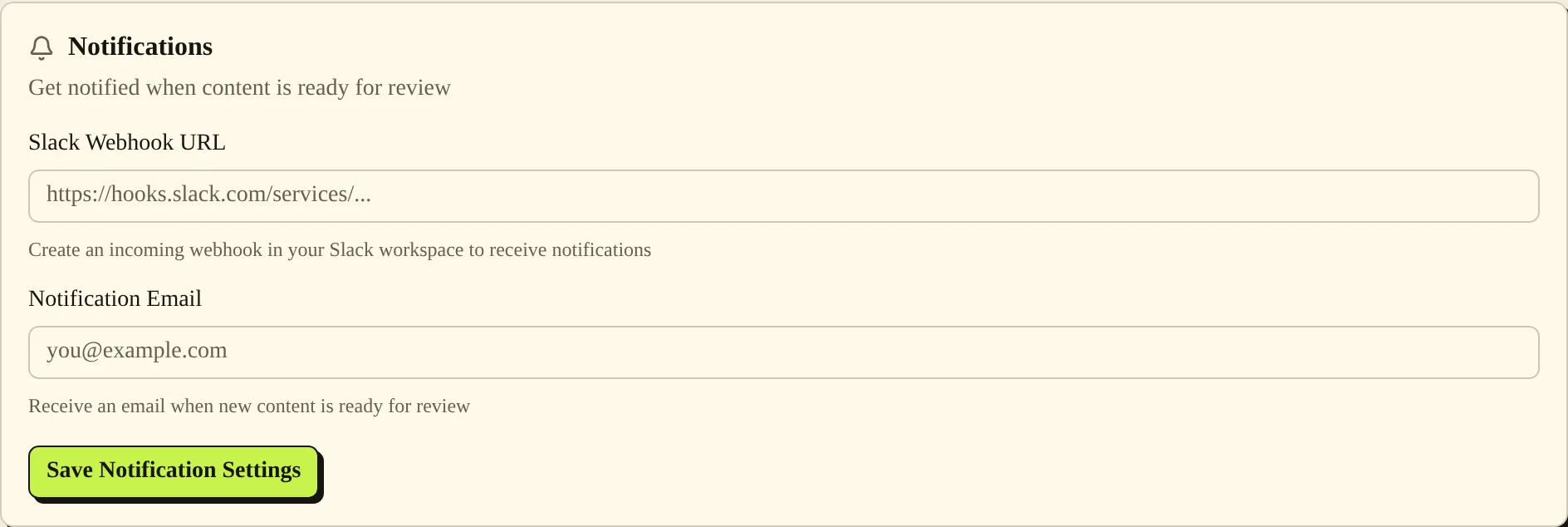
- Enter Notification Email for email messages. For Slack messages, create an incoming webhook in your Slack workspace and enter it in Slack Webhook URL.
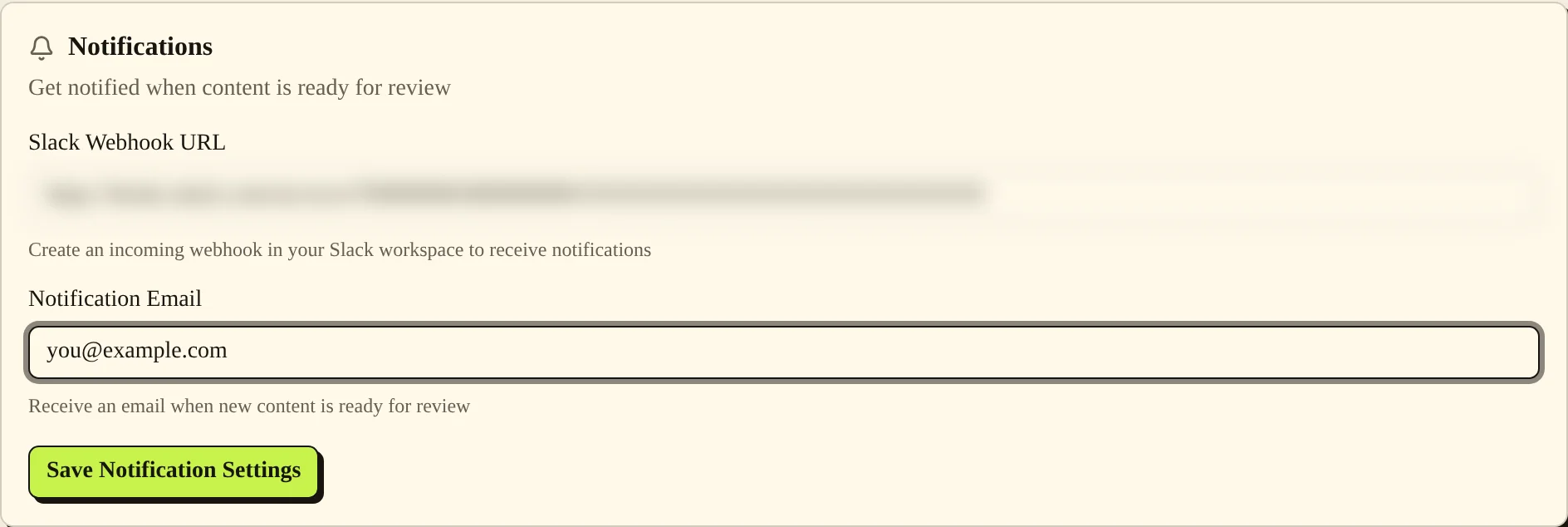
- Choose Save Notification Settings. When a new article waits for approval, check the inbox or Slack channel for its link.
Settings #
| Option | What it changes |
|---|---|
| Notification Email | Sets the email destination for review notifications. |
| Slack Webhook URL | Sets the Slack incoming webhook used to deliver review messages. |
| Save Notification Settings | Saves the notification destinations for the current blog. |
The same channels also warn you when your blog is running low on fresh ideas, at most once a day.
Common problems and fixes #
“Slack webhook URL must be an https://hooks.slack.com/ incoming webhook URL.” means the value is not an accepted Slack incoming webhook. Copy the webhook address from Slack rather than using a channel's normal web address.
If a message is missing, confirm you selected the intended blog and saved the destination. Check that Publish without approval is off. For email, also check the destination inbox's spam folder. For Slack, check the channel connected to the webhook.
If the fields are read-only or you see “Only an owner of this blog can do that.”, ask the blog owner to change the destinations.
Related pages #
Articles and the editor · Publishing schedule and calendar · Team members and roles · Troubleshooting and FAQ
Was this page helpful?