Last updated · Read Markdown
Troubleshooting and FAQ
What should I check when something does not work? #
Read the message, check the active blog and look at the relevant settings before retrying. A draft, a scheduled article and a published article are different states. For writing or publishing problems, check Plan & Billing, the site connection and the To review queue.
When to use it #
Use this page when a saved setting, connection test or article action fails. Start with the message closest to yours. If a problem continues, use Contact support where the app offers it, or email hello@postsprout.app. Include the blog name, action and message. Do not send passwords or API keys.
First checks #
- Check that the blog switcher shows the blog you meant to use.
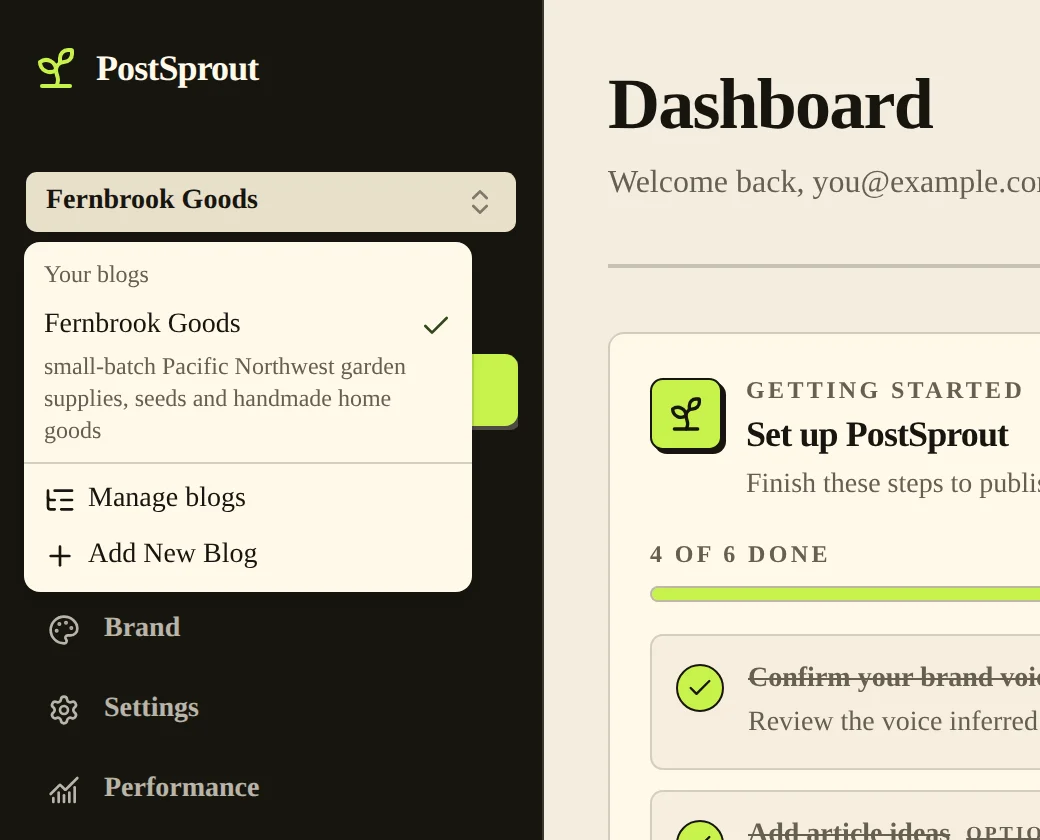
- Read the status in Articles, To review or Published. Use Preview or the live link to confirm which version you are looking at.
- Open Settings for connection problems, Plan & Billing for allowance problems, or pipeline Activity for a failed run.
Setup and connection messages #
| Message | Cause | What to do |
|---|---|---|
| “Blog name and niche are required” | Setup is missing required brand details. | Fill in the blog name and niche, then submit again. |
| “At least one seed keyword is required” | Setup has no seed keyword. | Add a keyword for the subjects your blog should cover. |
| “Reading your site took too long. Your site may be slow right now.” | The site read timed out. | Try again when the site is reachable, or fill in the brand details by hand. |
| “You have been signed out. Sign in again, then try again.” | Your session is no longer valid. | Sign in before retrying the site read. |
| “Add an application password to create the connection” | A new WordPress connection has no usable application password. | Generate one in WordPress and enter it in the connection form. |
| “Enter a new application password when changing the WordPress site URL” | The saved password belongs to the old address. | Enter a password for the new site, save and test again. |
| “Invalid shop domain. Expected your-store.myshopify.com” | The Shopify address is not in the accepted format. | Use the store's myshopify.com domain. |
| “Slack webhook URL must be an https://hooks.slack.com/ incoming webhook URL.” | The notification destination is not an accepted webhook. | Copy the incoming webhook URL from Slack. |
Article and access messages #
| Message | Cause | What to do |
|---|---|---|
| “Start your trial or choose a plan to generate articles.” | Generation has no qualifying subscription. | Check Plan & Billing and the available plan choices. |
| “Monthly article limit reached” | The account has used or reserved its allowance. | Check account usage and plan options. |
| “Daily regeneration limit reached” | The separate daily rewrite allowance is exhausted. | Try after the daily limit resets. A plan upgrade does not clear this daily limit. |
| “Only an owner of this blog can do that.” | The requested action changes an owner-only setting. | Ask the blog owner to make the change. |
| “You do not have permission to change this blog.” | Your role does not permit the change. | Ask an owner to check your access. |
| “File too large (max 10MB)” | An image exceeds the upload limit. | Export a smaller image and upload again. |
| “Invite created, but the email didn't send. Use Resend to try again.” | The invitation exists, but email delivery failed. | Use Resend under Pending invites. |
Why is there no live article link? #
A saved draft is not published yet. Check To review: the article may still wait for Approve & Publish. If you scheduled the article, check its publishing time and timezone. Then check your site connection in Settings.
Why does my site still show the old text? #
A save can succeed in PostSprout while the update to your site fails. You then see “Saved here, but blog update failed”. Check the publishing connection, then choose Edit and Save again. Check the live page after the retry.
“AI images are unavailable for this blog. Contact support to regenerate images.” means an image cannot currently be generated. Choose Contact support or Upload Image.
“Automatic publishing paused” means scheduled runs stopped after failures. Check pipeline Activity, contact support if needed, then use Re-enable auto-pipeline when the problem is resolved.
Related pages #
Shopify · WordPress and WooCommerce · Articles and the editor · Notifications · Team members and roles · Plans and billing
Was this page helpful?